Wednesday, 29 January 2020

Assign users to products

Assign users to products


In the new view of Autodesk Account user management, administrators can assign access to products and services by product, rather than by user.  If you are adding a new user, they receive a confirmation email explaining how to create an Autodesk account and download their software.


To add users by product:


  1. Sign in to Autodesk Account at manage.autodesk.com and click User Management > By Product. You will only see User Management if you are an administrator. If you don't see user management you will need to get your contract manager/primary admin to do this.

    Note: If your screen looks different from the image below, you may be in classic user management. For more information see Add Users in Classic User Management.


  2. Select a product to see how many seats are available.
  3. Click Assign users and select an existing user or add a new user by entering the user’s first name, last name, and email address separated by a comma. Separate multiple users with a semicolon.


  4. Select the services and click Assign Users.

    Note: If the user does not accept within 90 days, you will need to resend the invitation.

Wednesday, 22 January 2020

Dialog windows do not display in an Autodesk application

A dialog is expected but the program seems to hang.

Solution:

Do the following:
  • Move the window to a different monitor. Hold down the WINDOWS and SHIFT keys and then press the left or right arrow keys on the keyboard. This may pop the missing dialog into view. 
  • Test the issue with a different Windows user. If the other user account works then Reset the Windows Profile
  • Use the keyboard to move the window into view. Try this first on a visible window to see what happens   (This works for Vault dialog boxes):
    1. Execute the command to activate the dialog window.
    2. Press Alt+Spacebar on the keyboard.
    3. Press the M key and tap an arrow key.
    4. Move the mouse to bring the window into view.
    5. Click the left mouse button to cancel the operation.
  • Change the screen resolution to a different value, smaller or larger. This should bring all dialog windows back into view. Move the dialog window in question centered on the screen (or toward the upper-left) and then exit the program before changing the screen resolution back to what it was.

Tuesday, 21 January 2020

How to move Autodesk Network License Manager (LMTOOLS) to another system

Follow this link for help on moving your Autodesk license manager to another server.
This information can also be used to create a new license server.

LINK

Autodesk Inventor graphics display annotation scale

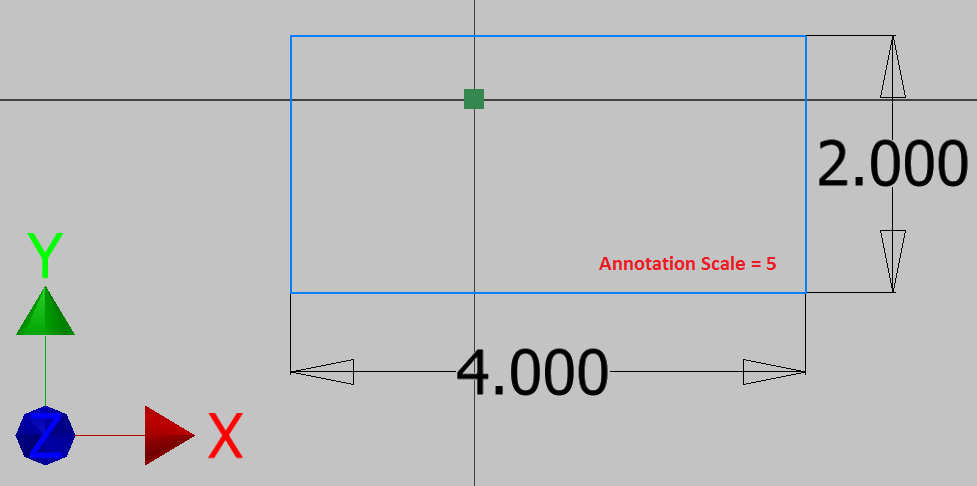
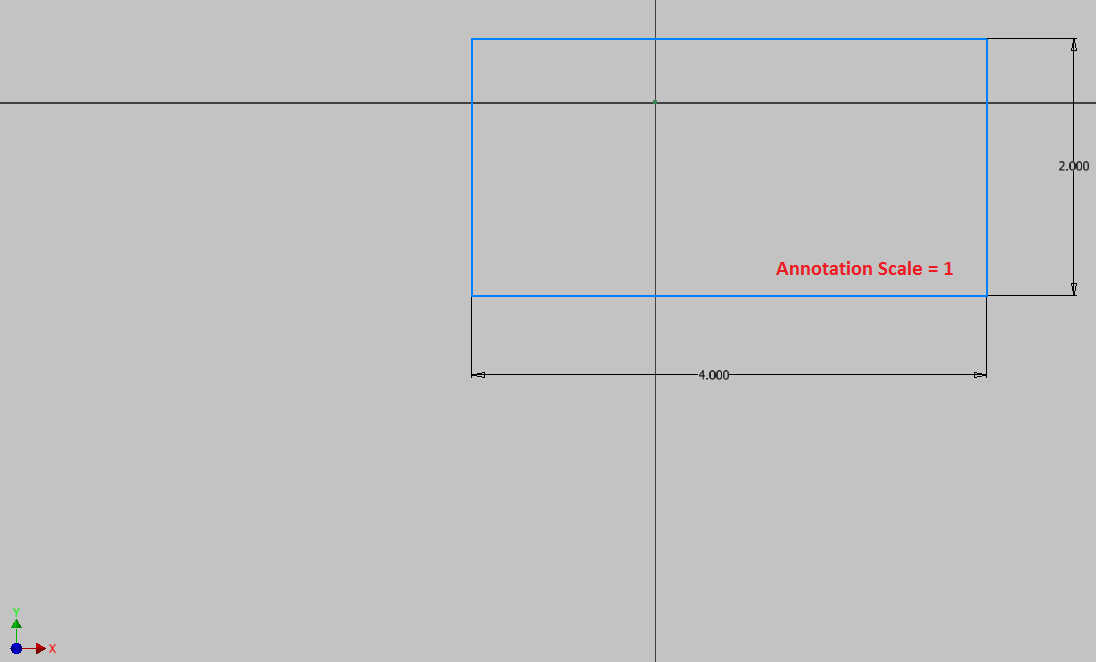
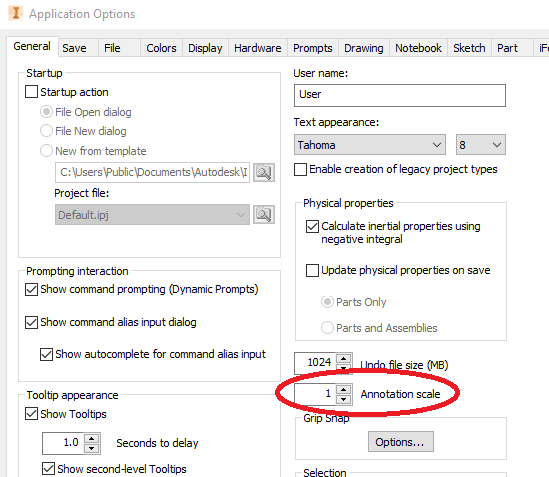
I am not getting any younger so my eyes deteriorate just a little every day. Hopefully your vision is better than mine. If not, you may want to use a larger Annotation Scale in Inventor. This sets the size of dimension text, arrowheads and other symbols. The default value is 1, but the scale can be set from 0.2 to 5.0. Look how big the dimensions and the UCS are when the scale is set to 5!! It makes me feel like I am using binoculars!


Access: TOOLS (tab) – OPTIONS (panel) - APPLICATION OPTIONS (command) – GENERAL (tab) – Annotation Scale


Cannot select multiple objects AutoCAD LT


Issue:

User having issues selecting multiple objects, when done, the previous selection disappears.

Reason:

User might have opened corrupted file which changed PICKADD variable from 2 to 0

Solution:

Go to the command line, type PICKADD press enter, change the variable from 0 to 2.


Wednesday, 15 January 2020

CAD formats supported in Inventor 2020 (import/export/AnyCAD)

Autodesk Inventor 2020 supports import and export of a broad range of CAD formats. besides its native data formats 2020 contains translators for the following CAD formats and format versions (data import/export, plus associative references of AnyCAD models; new formats compared to version 2018/2019 are highlighted):

FormatImportAssoc.AnyCADExport
Inventor 2019/2021 (*.ipt, *.iam)older and newer+-
AutoCAD 2D/3D (*.dwg, *.dxf)R12 - 2018+2000 - 2018
Alias (*.wire)version 11 and newer (import: also 10)+-
CATIA V4 (*.CATPart, *.CATProduct, *.model)all versions--
CATIA V5 (*.CATPart, *.CATProduct)R6 - V5-6R2018+R10 - V5-6R2019
Creo Parametric (*.prt, *.asm)Creo Parametric 1.0, 2.0, 3.0, 4.0, 5.0, 6.0+-
Fusion 360 (*.fusiondesign)all versions+-
IDF (*.idf)2.0, 3.0--
IFC (*.ifc)--IFC 2x3
IGES (*.igs)all versions-5.3
JT Precise (*.jt)7.0 - 10.5-7.0 - 10.5
NX (*.prt)Unigraphics V13 up to Siemens NX 12+-
Parasolid (*.x_b, *.x_t)up to version 31.0-9.0 - 31.0
Point-clouds.rcs (+ formats from ReCap)--
Pro/ENGINEER (*.prt, *.asm)up to version Wildfire 5.0+-
Pro/ENGINEER Granite (*.g)up to version 11.0-1.0 - 12.0
Pro/ENGINEER Neutral (*.neu)all-all
Revit (*.rvt, *.rfa).rvt up to 2020-.rfa 2020
Rhino (*.3dm)1.0 - 6.0--
SAT (*.sat)4.0 - 7.0-7.0
SolidWorks (*.prt, *.sldprt, *.asm, *.sldasm)2001 Plus - 2019+-
Solid Edge (*.asm, *.par, *.psm)V18 – V20, ST1 – ST10, 2019+-
STEP (*.stp, *.ste, *.stpz)AP214, AP203E2, AP242+AP214, AP203E2, AP242
ADSK (*.adsk)--all
SMT (*.smt)up to version ASM225-ASM225
STL (*.stl)all-all
OBJ mesh (*.obj)all-all
DWF (*.dwf, *.dwfx)6.0 – 7.57.5vÅ¡e
3D PDF (*.pdf)--1.6

Fusion 360 support was introduced in version 2018.2 as a preview; requires the Desktop Connector component and data stored in Fusion Team.

Inventor New Window but same model

Issue:

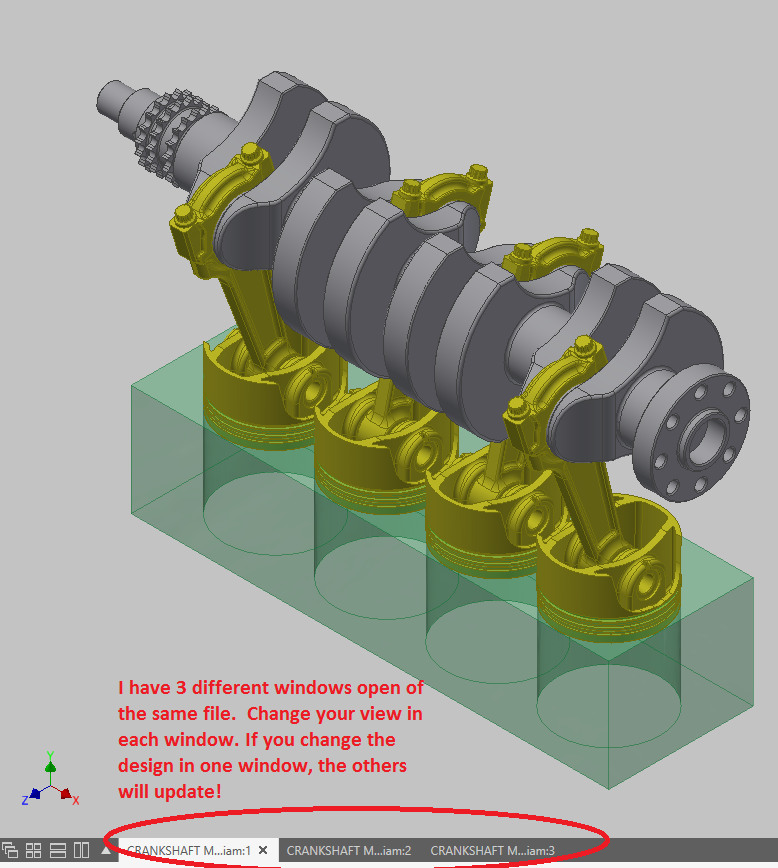
Have you ever been working on a model and you are constantly changing, rotating and orbiting your view? Well you have 2 options to be more productive. 

  1. Creating a VIEW REPRESENATION, which is a discussion for another time. 
  2. Creating a new window, each with a unique view. You can create a new window of your file without actually opening another session of the file. If you happen to change the design in one window, the other windows will update!


Access: VIEW (tab) – WINDOWS (panel) – NEW

news-2018-apr-2018-inv-13.png

Inventor Graphics Annotation Scale

Issue:

I am not getting any younger so my eyes deteriorate just a little every day. Hopefully your vision is better than mine. If not, you may want to use a larger Annotation Scale in Inventor. This sets the size of dimension text, arrowheads and other symbols. The default value is 1, but the scale can be set from 0.2 to 5.0. Look how big the dimensions and the UCS are when the scale is set to 5!! It makes me feel like I am using binoculars!


Access: TOOLS (tab) – OPTIONS (panel) - APPLICATION OPTIONS (command) – GENERAL (tab) – Annotation Scale
news-2018-apr-2018-inv-6.png
news-2018-apr-2018-inv-7.png
news-2018-apr-2018-inv-8.png


License Checkout Time Out issues with 2020 Products

Issue:

You open the product and get an error box stating the license checkout timeout occurred and have to close the product
Causes:This problem is related to the Autodesk Desktop Licensing system
Solution:
This is a fairly common issue with the 2020 software, and the fix is generally pretty painless. See the link below for information on how to correct that issue:
Basically, first step is to install the licensing service update:
 
When you run the July update, that specific service is updated, it generally fixes the issue you are experiencing.  If you are unsure that it's installed, go here:  C:\Program Files (x86)\Common Files\Autodesk Shared\AdskLicensing\ and confirm you see the 9.2.2.2501 folder is there.
If that doesn't correct the issue then do the following:
Click on your start button and type in Services (then click on the Services with gears next to it) this should open the Windows Services on your PC. Go down the list until you see Autodesk Desktop Licensing Service and see if it shows as Running. If it's not running, right mouse click on Autodesk Desktop Licensing Service and select Start from that list. If you can start it successfully, open AutoCAD. If you get an error starting (generally you will get either 1053 or 1067 error if it will not start).
If the Autodesk Desktop Licensing Service is running then, check your Autodesk Desktop app and run any AutoCAD updates first, then run the Autodesk Single Sign On Component 2020.1 (11.0.0.1800) 64-Bit - Update if you have not already done so. Reboot and then retest to see if the issue is resolved.

Where to Find and Download Product Updates From Your Autodesk Account

04/03/2019


Tuesday, 14 January 2020

You have x days to establish an internet connection

When using a single user subscription product  it will perioidcally check that your license is still valid i.e. still assigned to you and not expired. If it can't communicate with the autodesk license servers ti will start a count down. If it reaches 0 your product will refuse to run.

This is the checklist you need to work through to see where the problem lies:

Solution:

If your computer is not connected to the Internet, connect it and launch your Autodesk software to validate your license.

If your computer is connected to the Internet and you receive this error, try the following solutions to establish an Internet connection.
To troubleshoot this issue for a macOS product, see Error: "Establish an Internet Connection to Continue" on macOS.

Friday, 10 January 2020

Autodesk License issues? Update the license service component

Autodesk license issues? Check your license service is up to date.

Autodesk periodically release updates to the license service component. Normally this will appear as an available update in the desktop app but lots of customers can't or don't use the app so miss it.

Check whether you have the latest license manager installed.
Look in the folder shown below


If you don’t have that highlighted line then you don’t have the latest license manager installed.
Exit all autodesk programs (including desktop app)

Download the latest license manager from this link

Once downloaded , open  the zip file and copy the file inside to your desktop.
Then  right click on the file and choose run as administrator:

Reboot your pc and try and launch your autodesk program again.